Schedule Dropper
User guide
For first-time users
Drop one schedule. Every entry on it is read at once, you check the list, and then they all go into Google Calendar together.
1. What Schedule Dropper is
It reads a single sheet packed with dates — a year planner, a fixture list, a season calendar — and adds those entries to your Google Calendar all at once. Instead of typing dozens of entries by hand, you drop the file once.
The difference from Event Dropper, the first tool in the series, is how many entries come off one sheet: Event Dropper takes one entry from one flyer, while Schedule Dropper takes many at once. Note that Schedule Dropper does not write WhatsApp/SNS announcements — that is an Event Dropper feature.
2. Before you start
You only need three things.
| What you need | Details |
|---|---|
| A Google account | The owner of the calendar you want the entries added to. |
| A schedule file | PDF or an image (JPEG/PNG). |
| Cost | Free. Only AI mode needs your own Gemini API key, which also has a free tier. |
3. How it works
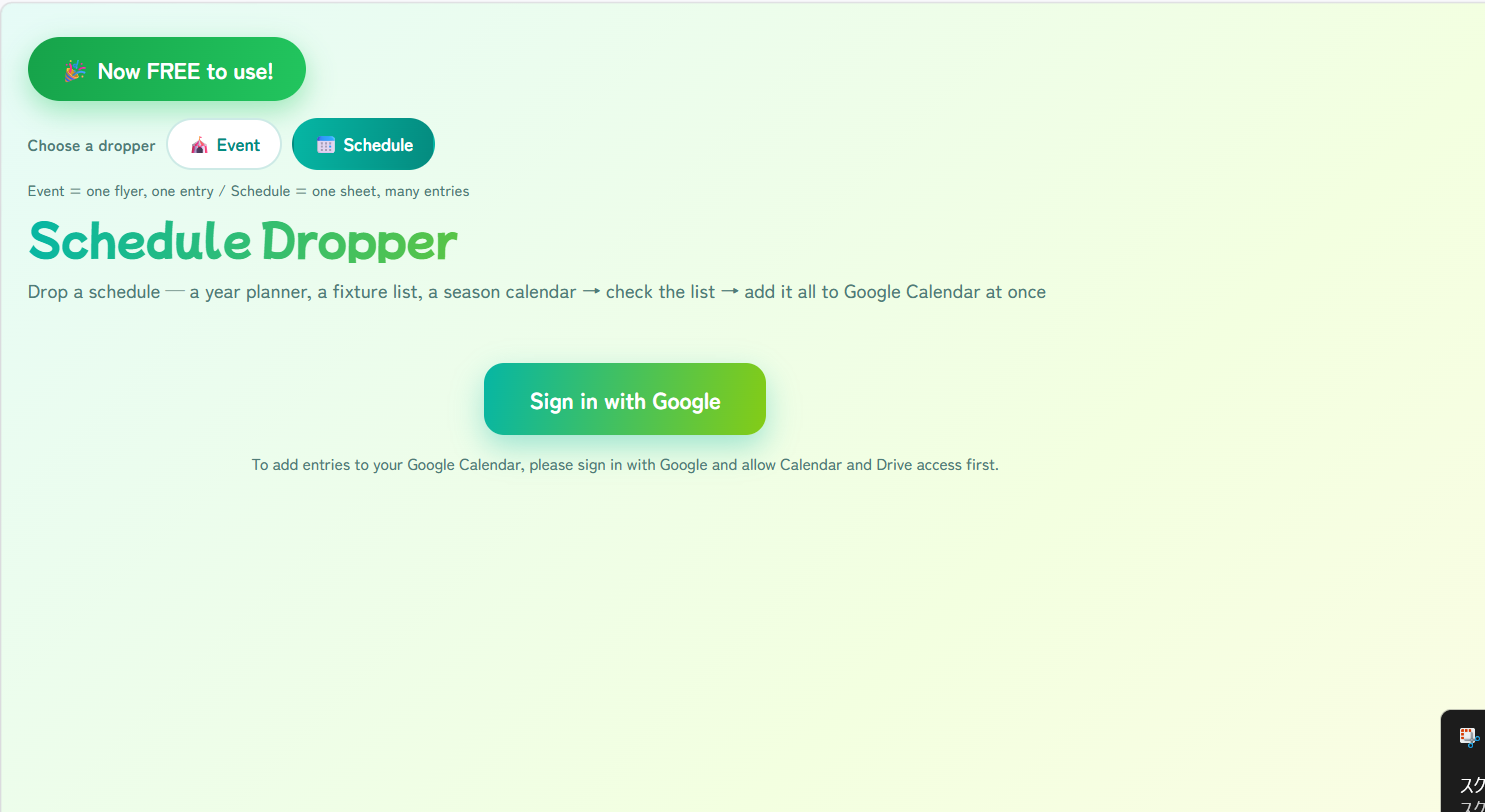
1Sign in
Press "Sign in with Google" and choose your account. Calendar and Drive permissions are needed so that entries can be added and the file can be read.
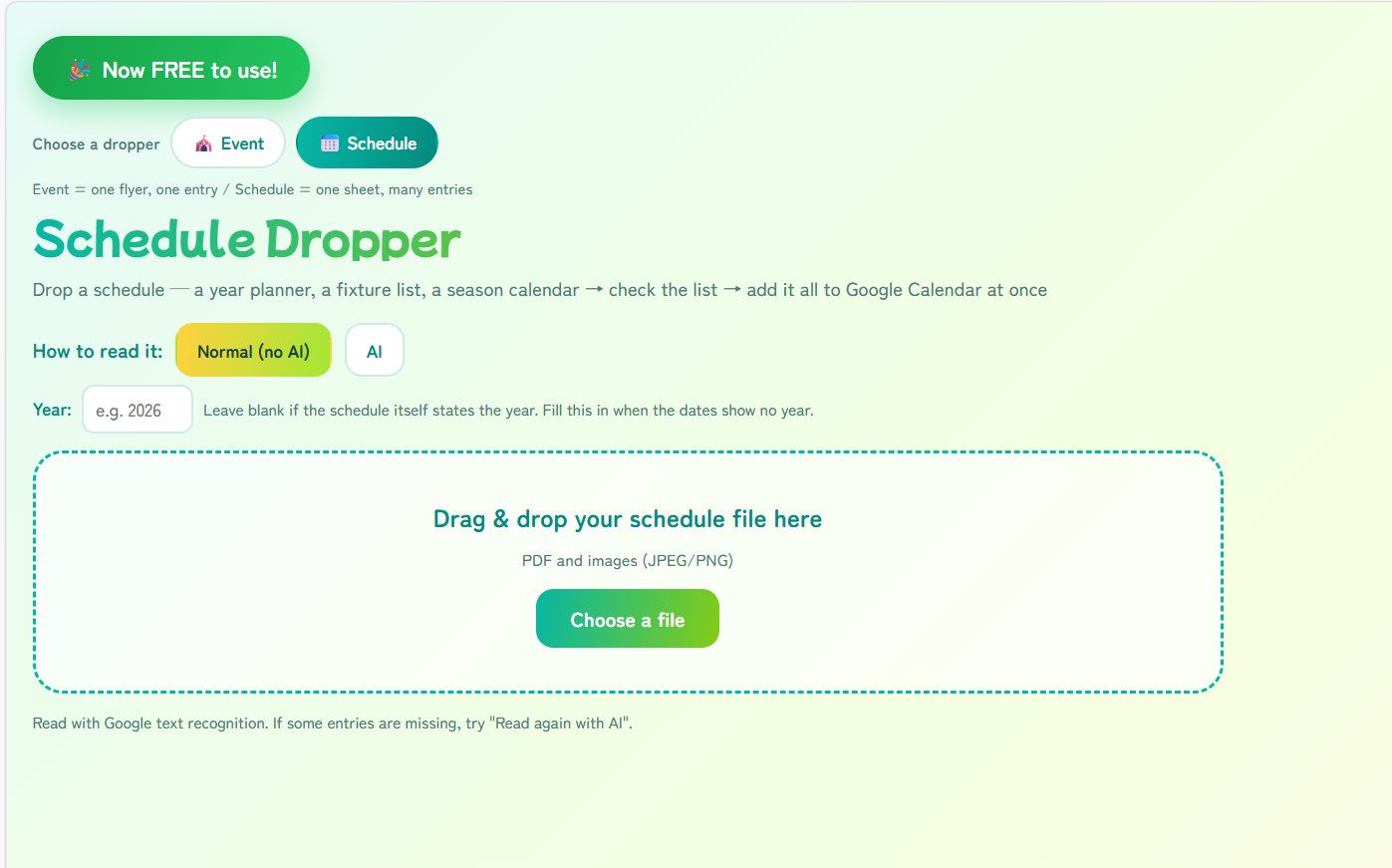
2Fill in the year
Many schedules show dates without a year. If the schedule itself states the year, leave this box blank — it is picked up automatically. If the dates show no year at all, type the year here.
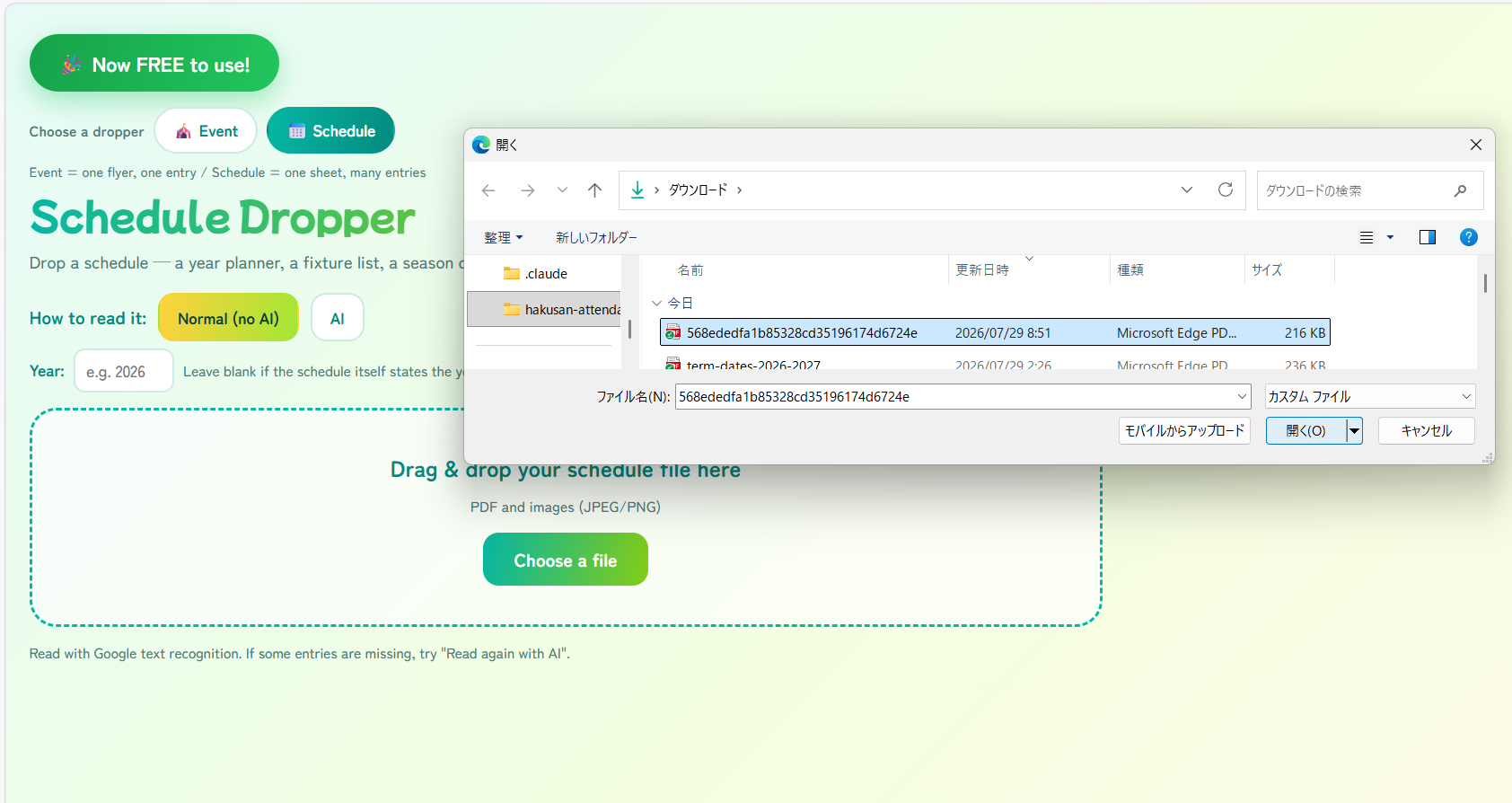
3Drop the schedule
Drag the PDF or image onto the area on screen. "Choose a file" works just as well.
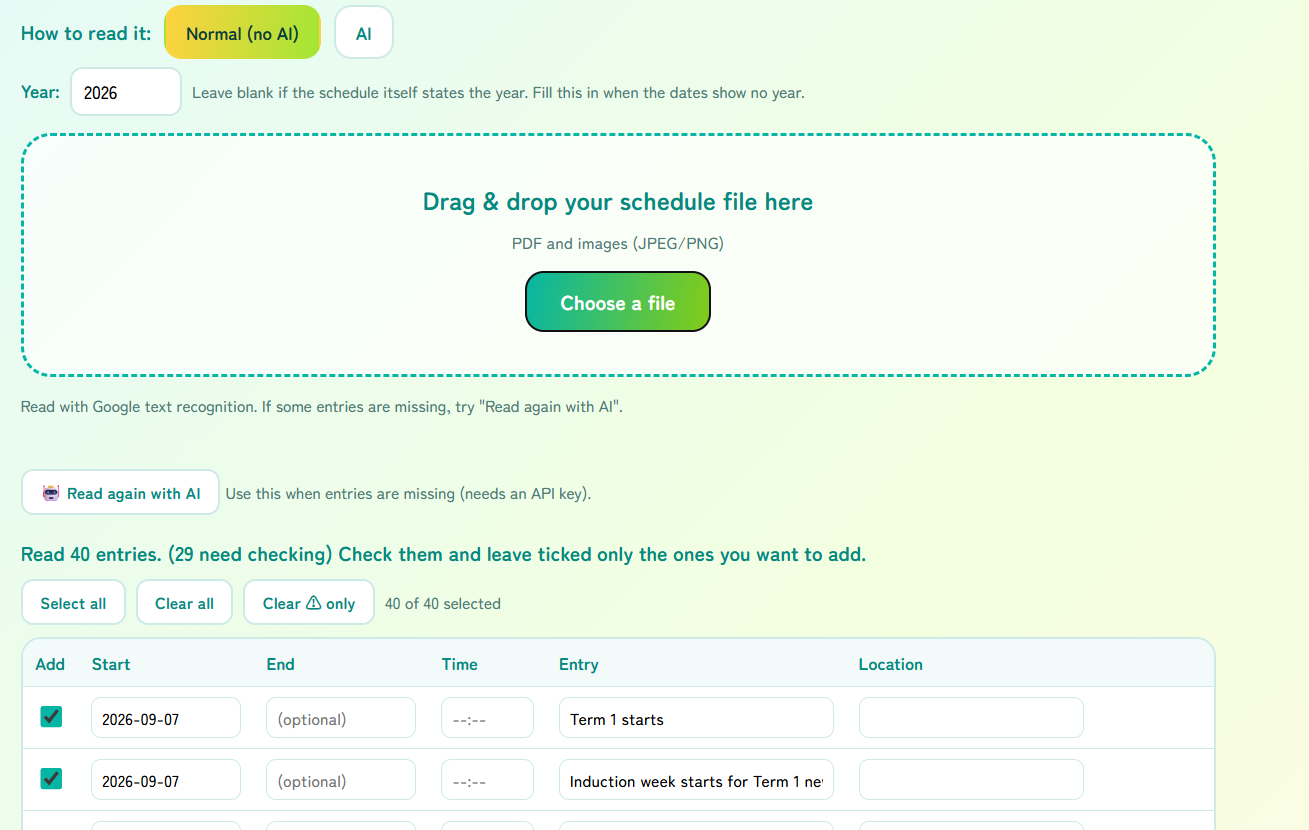
4Check and correct the list
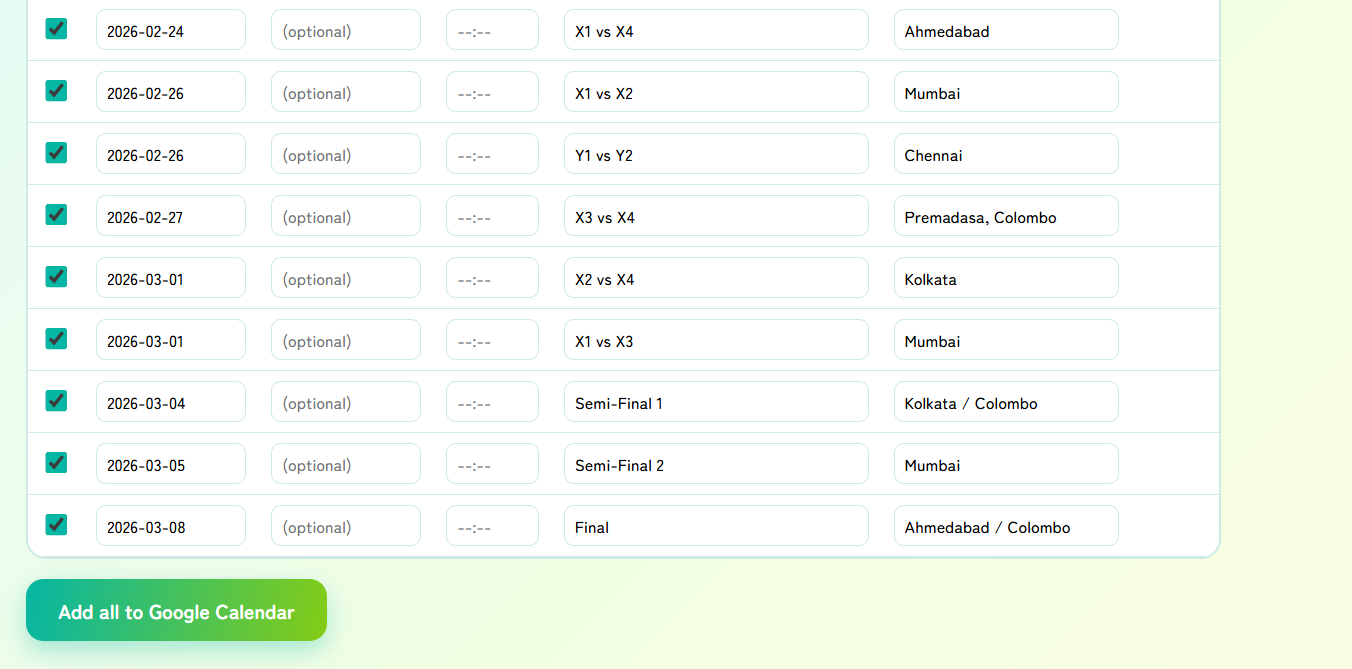
Every entry that was read appears in a list. Start, End, Time, Entry and Location can all be edited on the spot. Untick anything you do not want added.
5Add them all at once
Press "Add all to Google Calendar" and every row that is still ticked goes into your calendar.
4. Normal mode and AI mode
There are two ways to read a schedule. Which one suits you depends on the shape of the sheet, so switch if the result is not what you expected.
| Reading mode | Suits | What it needs |
|---|---|---|
| Normal (no AI) | Table-style sheets with one entry per row. | Nothing to set up, free. |
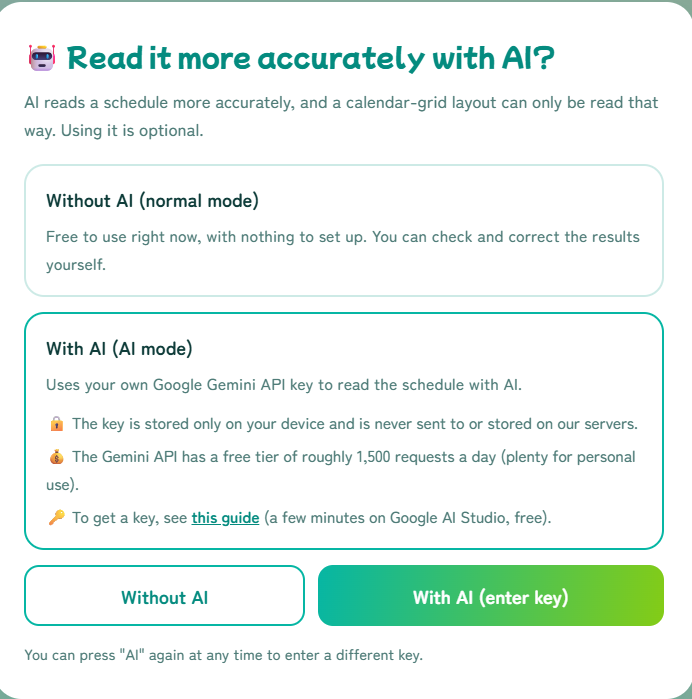
| AI mode | Calendar grids and heavily designed schedules. | Your own Gemini API key. |
Getting a Gemini API key
- Press "With AI (enter key)".
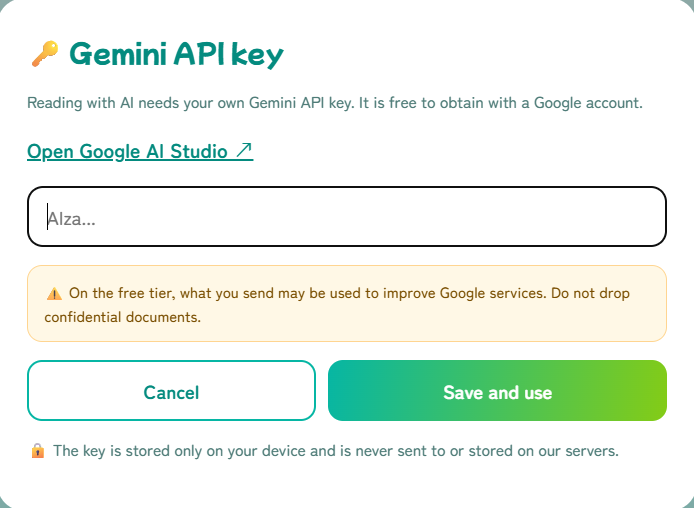
- Follow "Open Google AI Studio" and create a key (a few minutes, free, with a Google account).
- Copy the key and paste it into the box.
- Press "Save and use".
If entries are missing after a normal-mode read, press "Read again with AI" above the list to run the same file through AI (an API key is needed).
How to get a Gemini API key (no card, 3 minutes, free) →
5. Reading the results
Reading is not perfect. Always look through the list before you add anything.
Rows marked with ⚠
A ⚠ appears on dates that fall outside the year you set. These are never corrected automatically, because some schedules genuinely list such dates. Look at the row and either fix the date or untick it. "Clear ⚠ only" unticks every flagged row in one go.
With a long list, start small
When there are dozens of entries, add just a few first and see how they look in your calendar before adding the rest. "Clear all" lets you start from nothing and tick only what you need.
Double entries are unlikely
Rows that were added successfully are unticked automatically, so pressing the button again will not put the same entry in twice.
Selecting and clearing in bulk
"Select all", "Clear all" and "Clear ⚠ only" above the list switch the tick boxes in bulk.
6. Frequently asked questions
- Can it read any schedule?
- No. Table-style sheets with one entry per row read well, but heavily designed material such as a poster can lose its structure in normal mode and may not be read at all. Use AI mode for calendar grids.
- What happens if I leave the year blank?
- If the schedule states the year, it is picked up automatically. If it does not, the year cannot be worked out reliably, so typing it in is safer.
- Something was read incorrectly.
- You can correct it directly in the list before adding. If there is a lot to fix, reading again with AI often helps.
- Will dropping the same schedule twice create duplicates?
- Rows that were added are unticked, so pressing the button again will not duplicate them. Reloading the page and adding everything from scratch will, though — check your calendar in that case.
- Can it write WhatsApp/SNS announcements?
- Not in Schedule Dropper. Announcements are a feature of Event Dropper.
- Is my data sent anywhere?
- No. Schedule Dropper has no server. Only when you use AI mode is the schedule file sent to Gemini, using your own API key. See the privacy policy for details.