Event Dropper
User Guide
For first-time users
Just drop the event document. The event goes to your Calendar and the file goes to your Drive — in one step. You can also create a WhatsApp/SNS post from the same details.
What is Dropper?
Dropper is a web tool that reads an event document (PDF or image), creates the event in your Google Calendar, and saves the file to your Google Drive.
No install. Runs in the browser. Reading and saving all happen inside your own Google account. Event Dropper has no server and holds none of your data.
Before you start
All you need is a Google account.
| What you need | Notes |
|---|---|
| Google account | For Calendar and Drive |
| Browser | Chrome / Edge / Safari, etc. |
| Event document | PDF or image (JPG / PNG) |
How it works
1Sign in
Click "Sign in with Google" and choose your account.
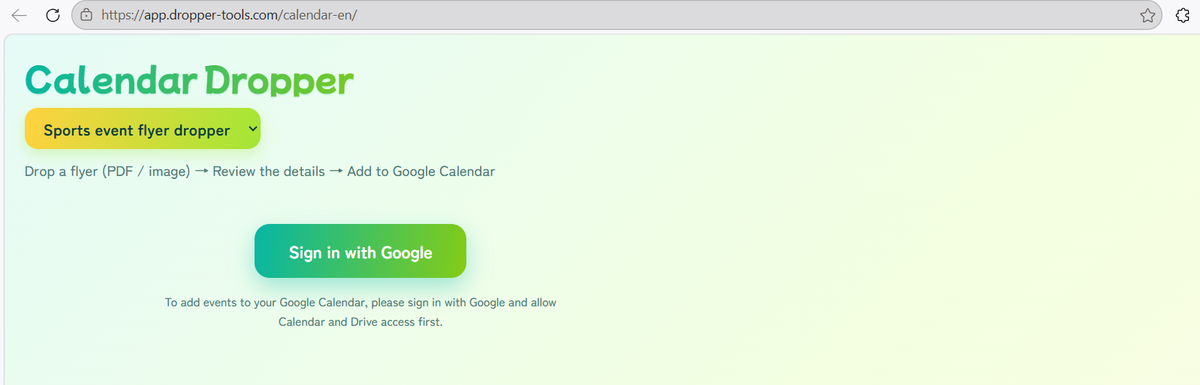
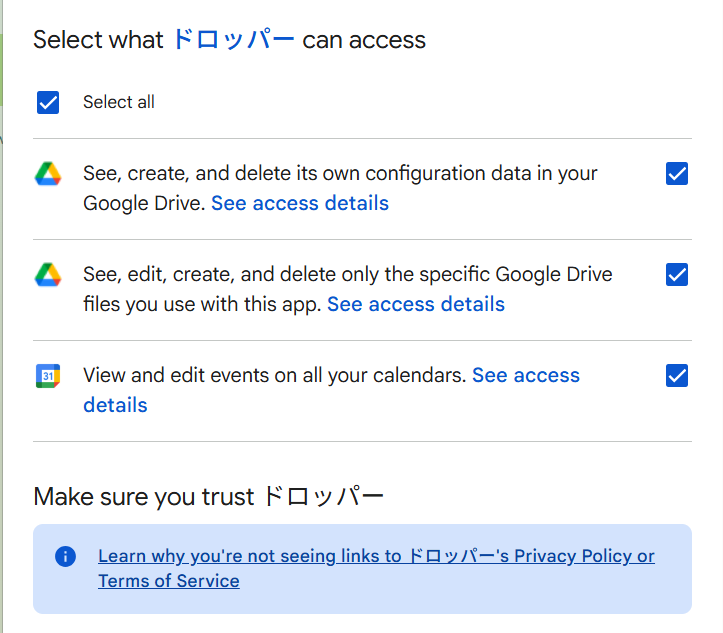
Google will ask for permissions. Dropper requests only these three:
- Calendar events — to create the tournament event
- Drive files created by Dropper — to save the event document
- App configuration data — to remember your settings
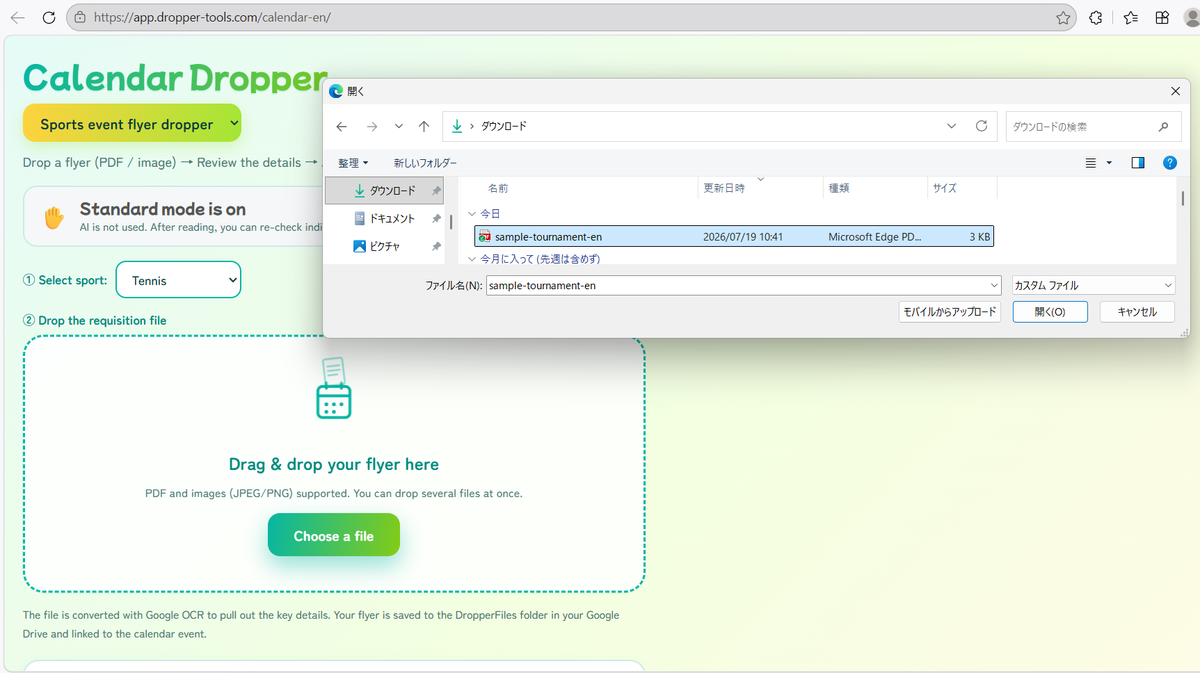
2Drop the event document
Drag and drop the event document PDF or image onto the drop area. You can also click to choose a file.
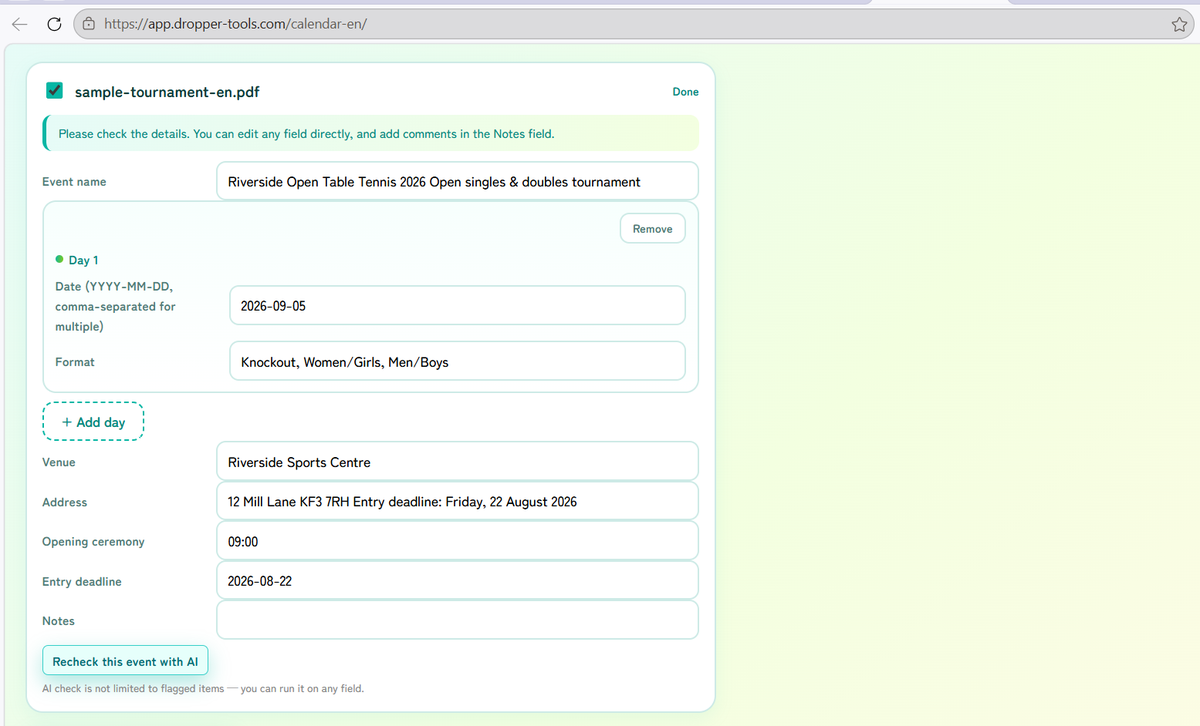
3Check the results
The tournament name, date, venue, events and more are read automatically and shown on a card. Always check the results here. Anything wrong can be fixed on the spot.
4Register
Click "Register" and everything goes to your Calendar and Drive.
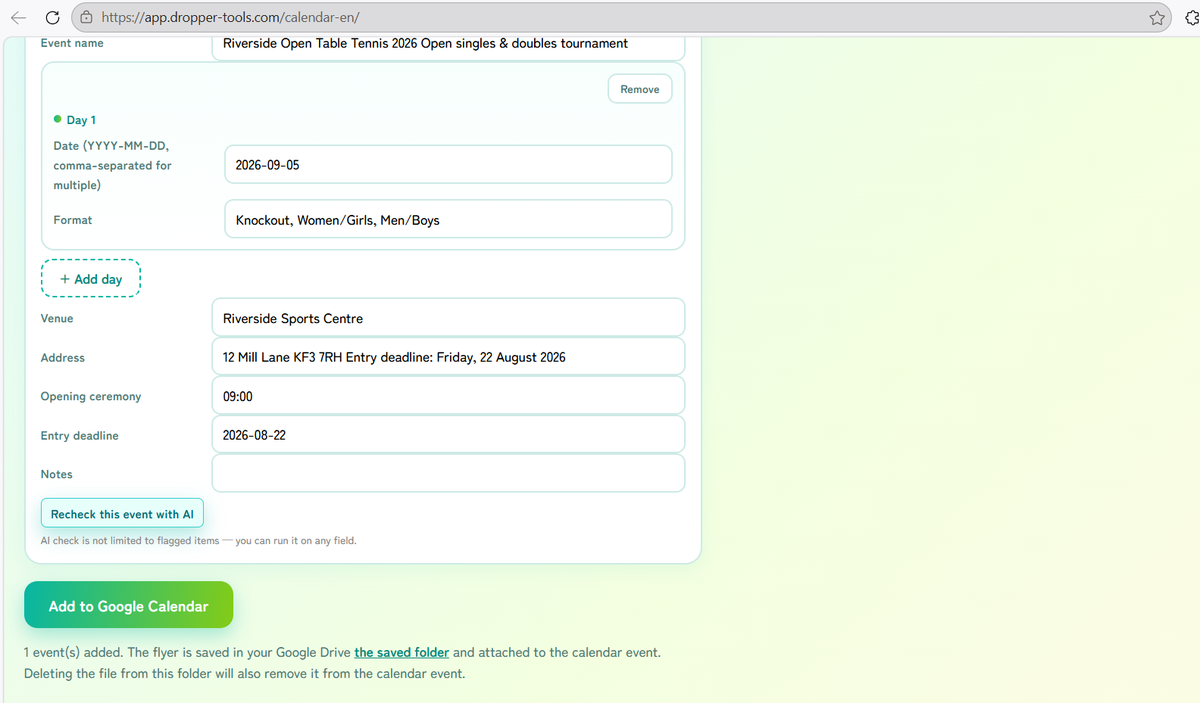
What gets registered
| Where | What |
|---|---|
| Google Calendar | The tournament-day event (name, time, venue) |
| Google Drive | A folder tree <Year> Tournaments / <Month> / Tournament name / in My Drive (e.g. 2026 Tournaments / 09 /), with the event document inside |
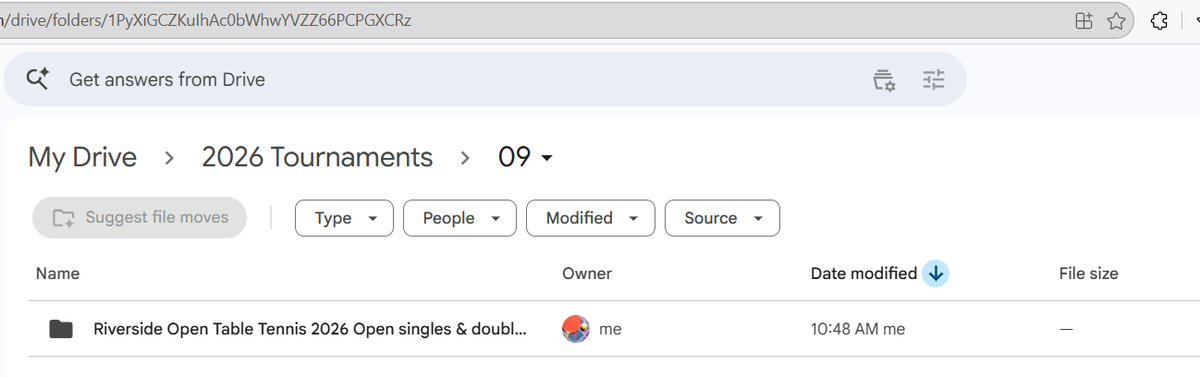
Using AI (optional)
For better reading accuracy you can use AI (Google Gemini). It's entirely your choice. The basic reading works without it.
Turning AI on
After signing in, a popup asks whether to use AI. Choose "Use AI" and the API key screen opens.
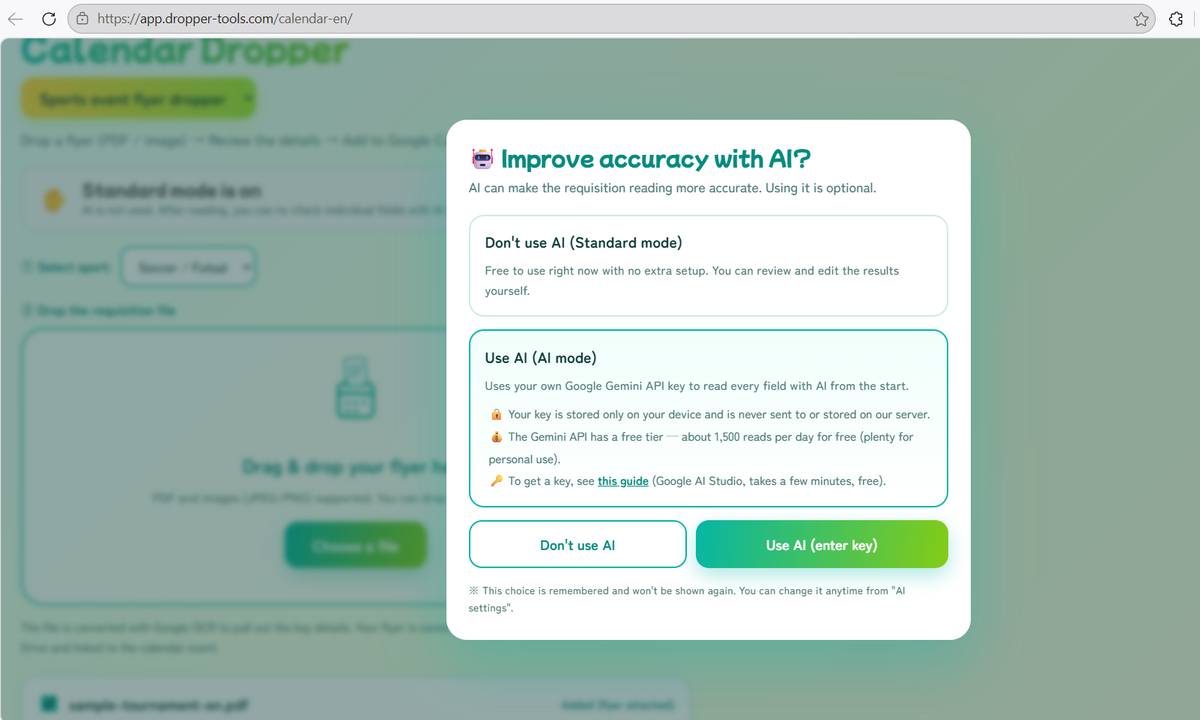
Getting an API key
- Open Google AI Studio
- Sign in with your Google account
- Click "Create API key"
- Copy the key and paste it into Dropper
It's free and takes about 3 minutes.
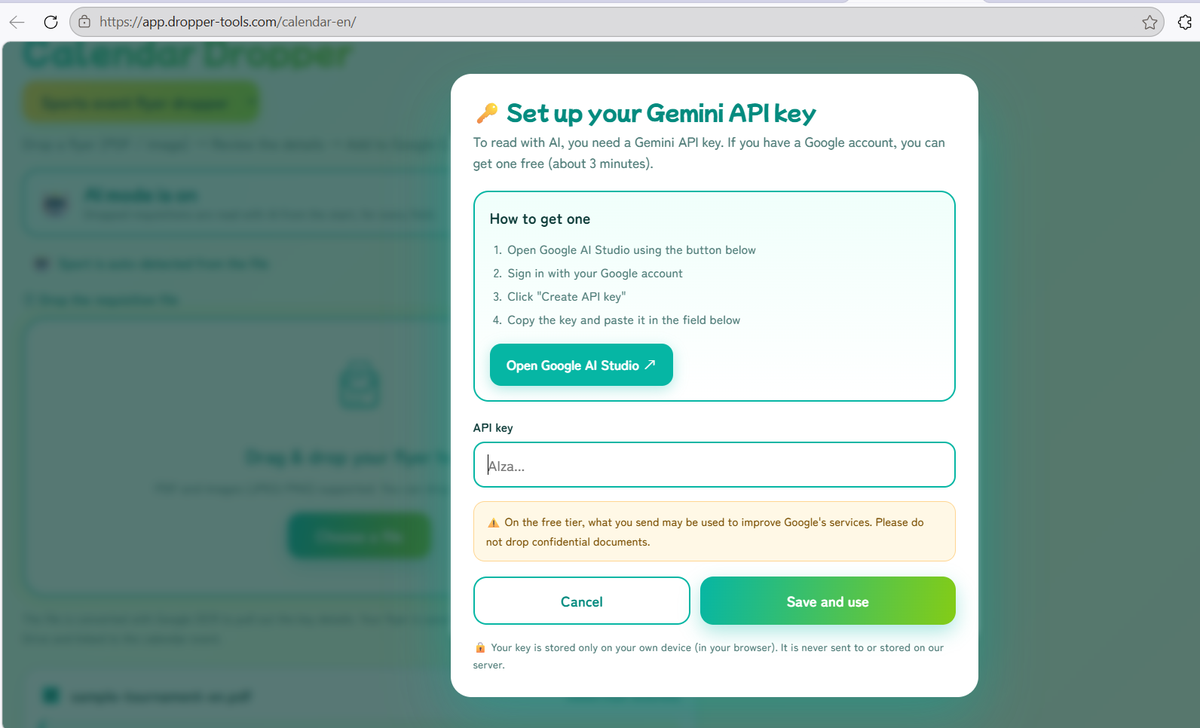
Your choice is remembered, so the popup won't appear again. To change it, click "AI settings" in the banner at the top of the screen.
How to get a Gemini API key (no card, 3 minutes, free) →
FAQ
- Is it free?
- No. Everything is free to use.
- Which sports are supported?
- Table tennis and several other sports. Pick one from the sport selector at the top of the screen.
- The reading was wrong.
- You can edit the card directly before registering. Some document layouts are harder to read; using AI often helps.
- How do I delete a registered event?
- Delete it from Google Calendar and Drive as you normally would. Dropper has no delete function.
- Is my data sent anywhere?
- No. Event Dropper has no server. Only when you use AI mode is the text of your event document sent to Gemini, using your own API key. See the privacy policy for details.