Decide Dropper
User guide
For first-time users
Just drop in a chat screenshot or your meeting notes. It sorts them into what was decided, what is still open, what to do, and a record. Reading and copying need no sign-in.
1. What Decide Dropper is
A web tool that extracts the text from chat screenshots, handwritten notes, photos of a whiteboard, and documents such as minutes or committee reports, then sorts it into what was decided, what is still open, what to do, and a record. No more scrolling back to ask what you actually settled.
No install. Runs in the browser. Decisions Dropper has no server and holds none of your data. Reading and copying need no Google login at all.
2. Before you start
Here is what you need. Unlike Event Dropper and Schedule Dropper, this tool runs in AI mode only. A Gemini API key is required to read anything.
| What you need | Details |
|---|---|
| A browser | Works on a computer or a phone. Nothing to install. |
| A Gemini API key | Required. Free to get with a Google account (about three minutes). No credit card is asked for. |
| The record to read | Images (JPG, PNG) or PDF. Up to 10 files at once. |
| A Google account | Only needed to add items to your calendar. Reading, copying and saving as an image need no sign-in. |
How to get a Gemini API key (no card, 3 minutes, free) →
3. The basic flow
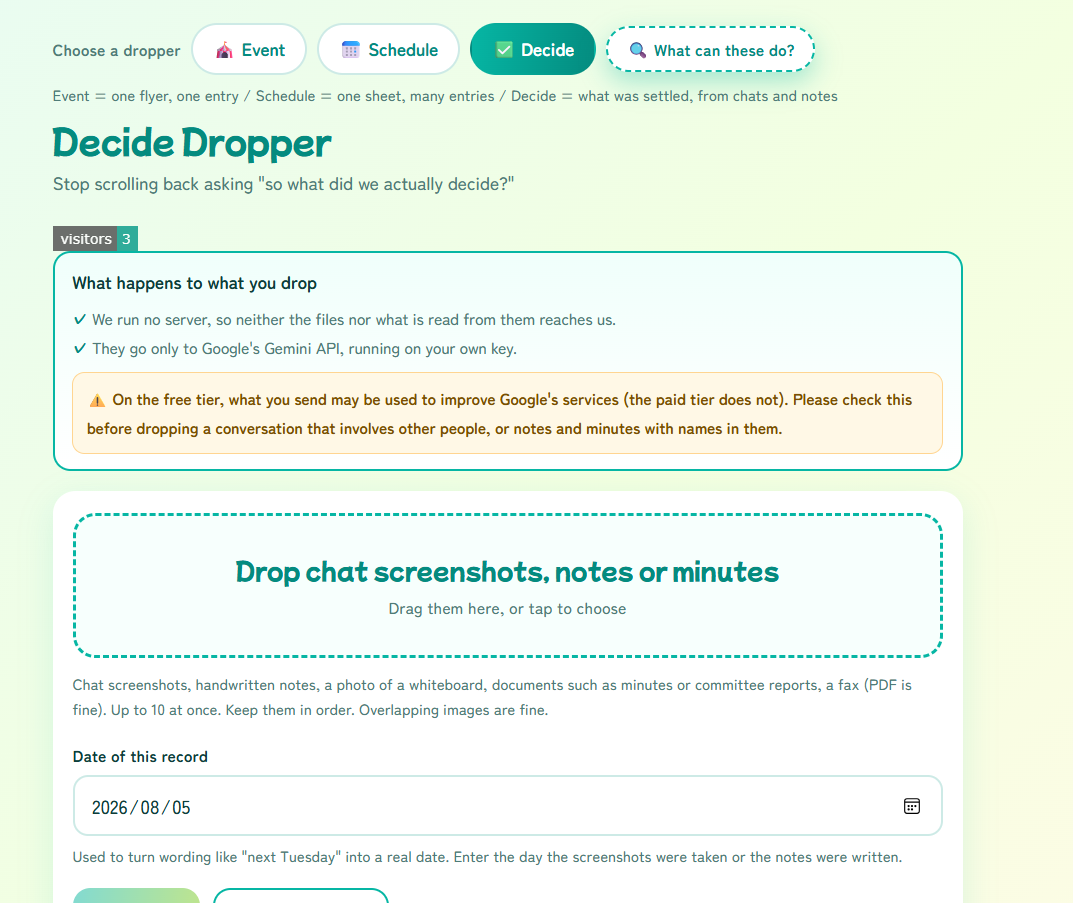
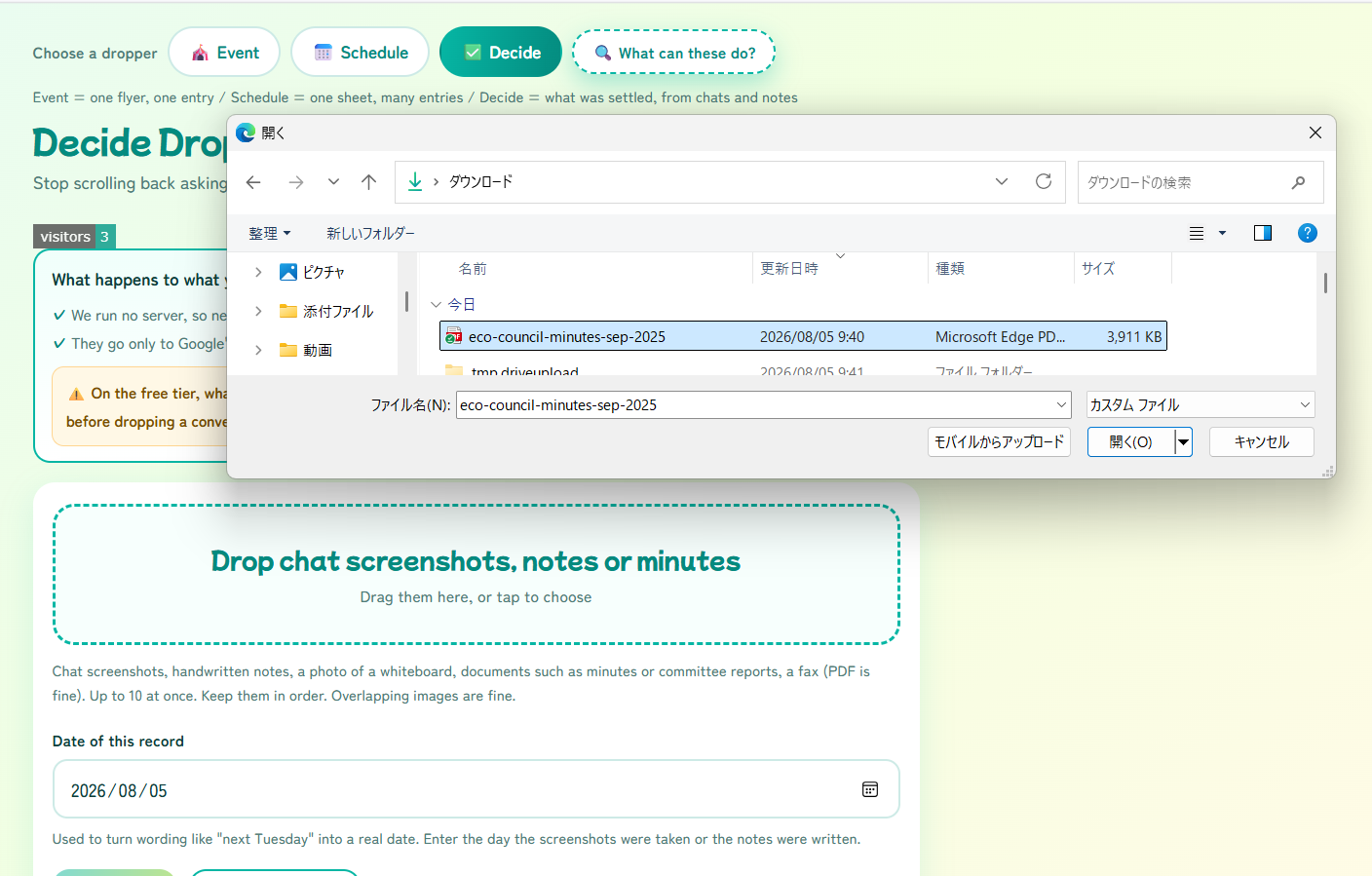
1Drop in the record
Drag a chat screenshot or your meeting notes onto the area on screen. You can also press “Choose files” and pick them.
2Set the date, then press “Read it”
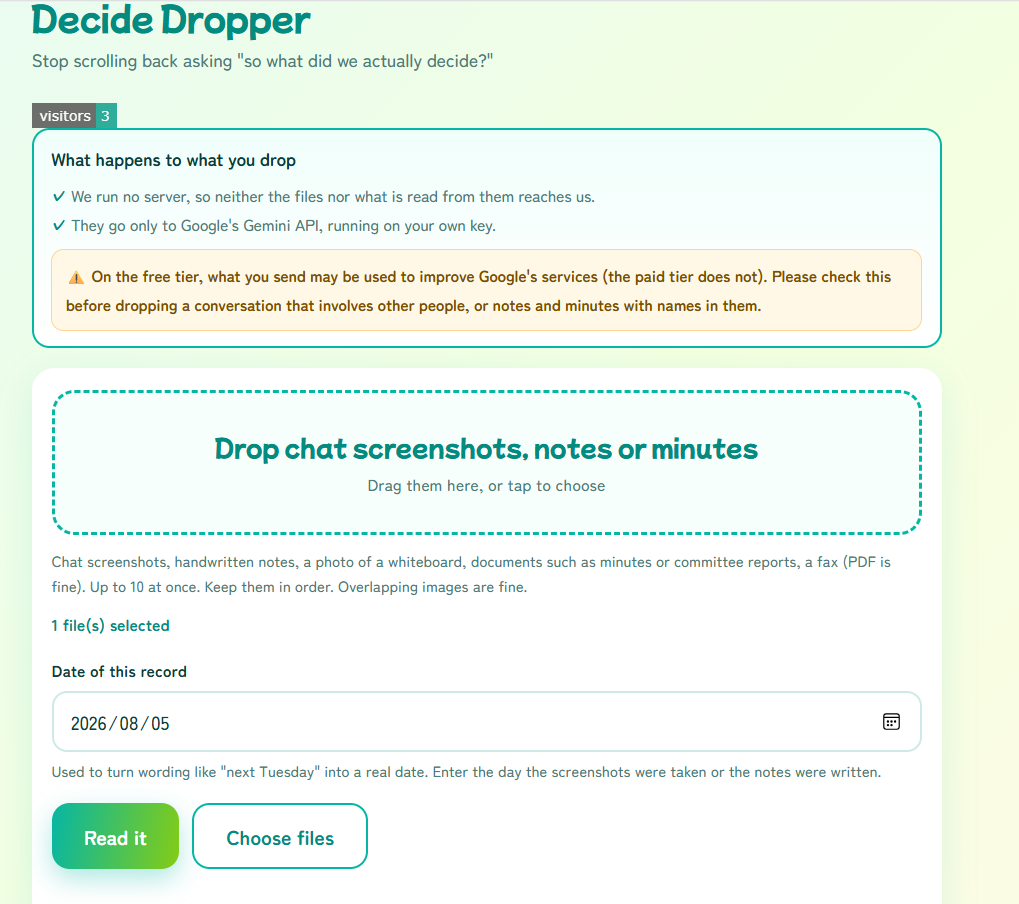
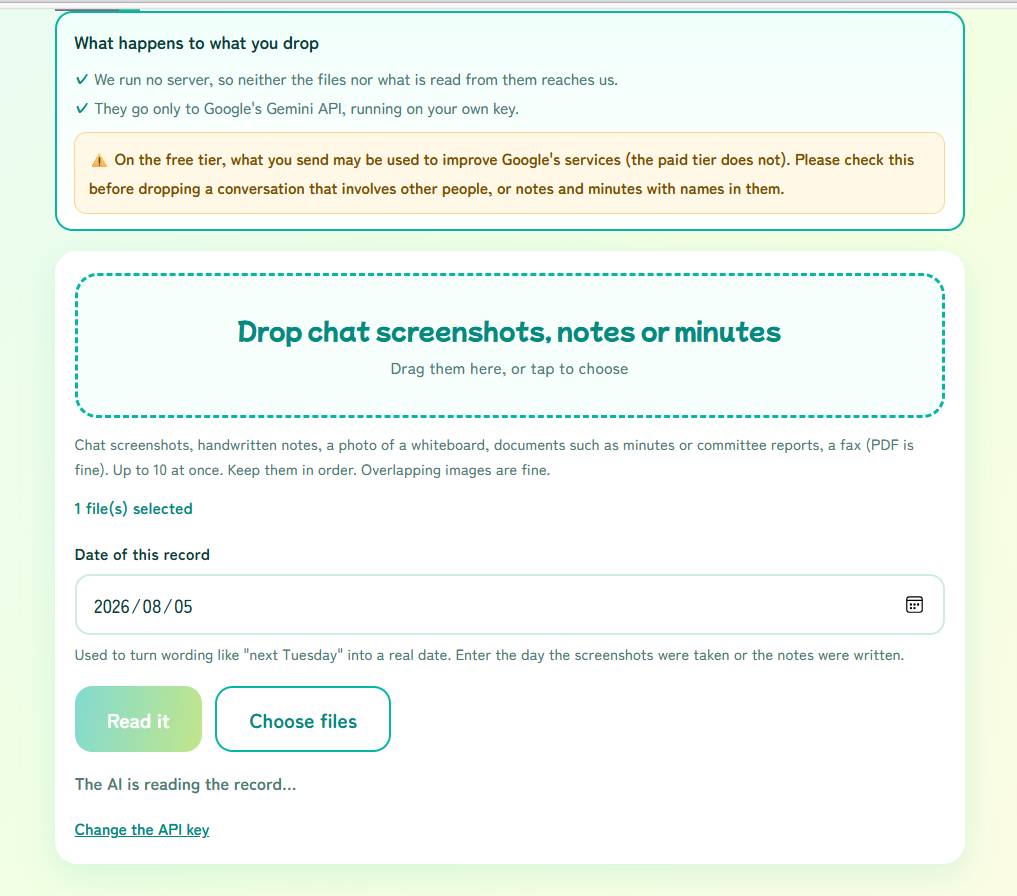
Check “Date of this record” and press “Read it”. Enter the day the screenshots were taken, or the day the notes were written.
3Check the four groups
What was read appears split into Decided, Still open, To do, and Record. Please check it here. Each date is shown next to the original wording, so you can compare the two on the spot.
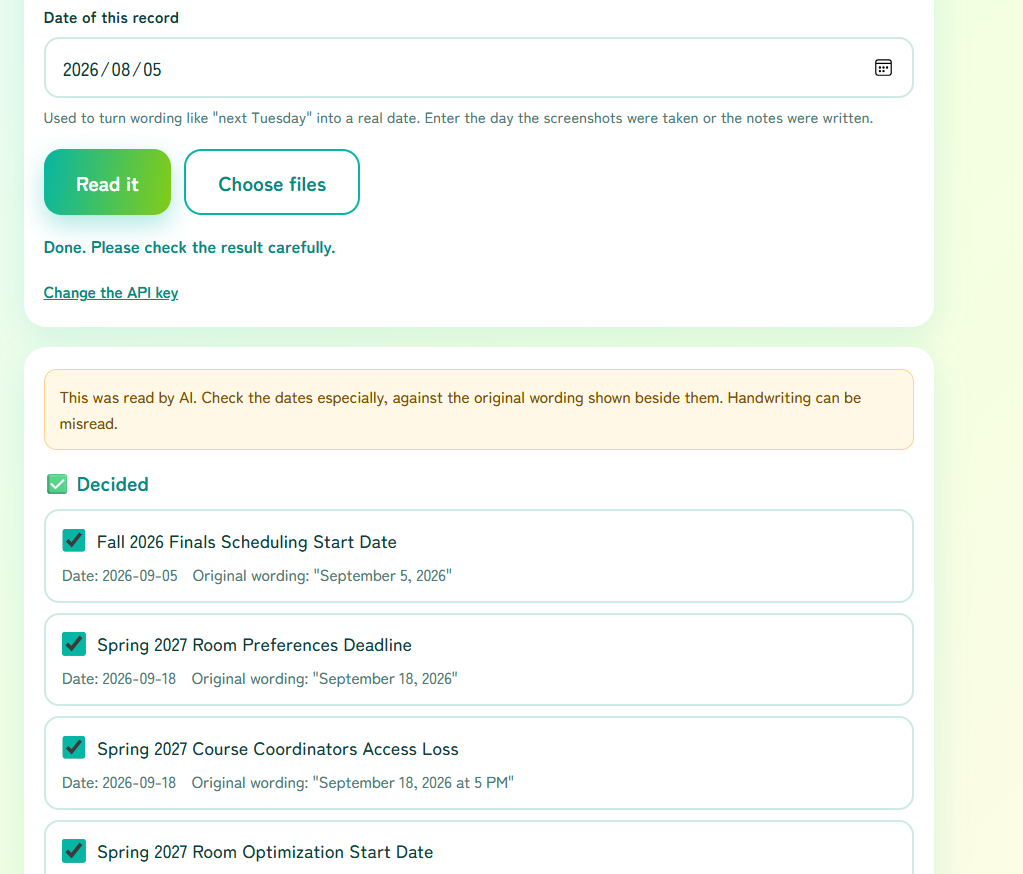
4Copy the summary or save it as an image
“Copy the summary” gives you the sorted result ready to paste into a chat or an email. “Save as image” turns it into a single picture. Neither needs a sign-in.
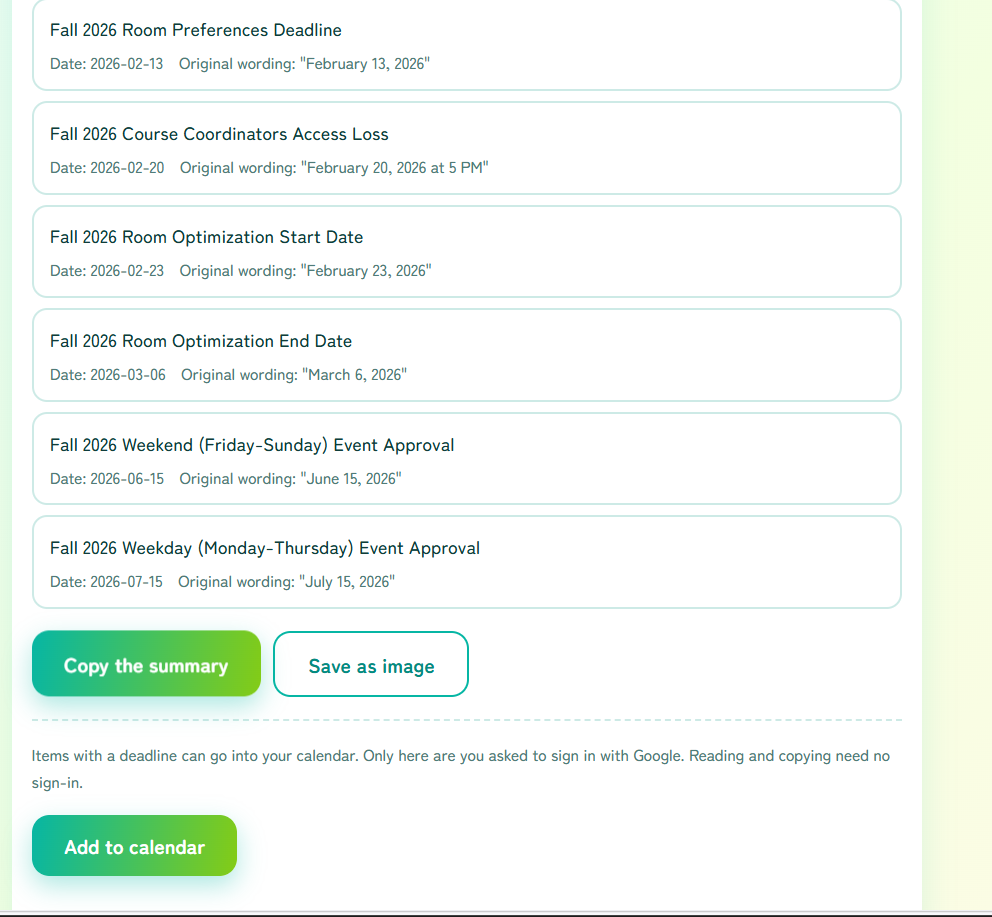
5Add the items with a deadline to your calendar
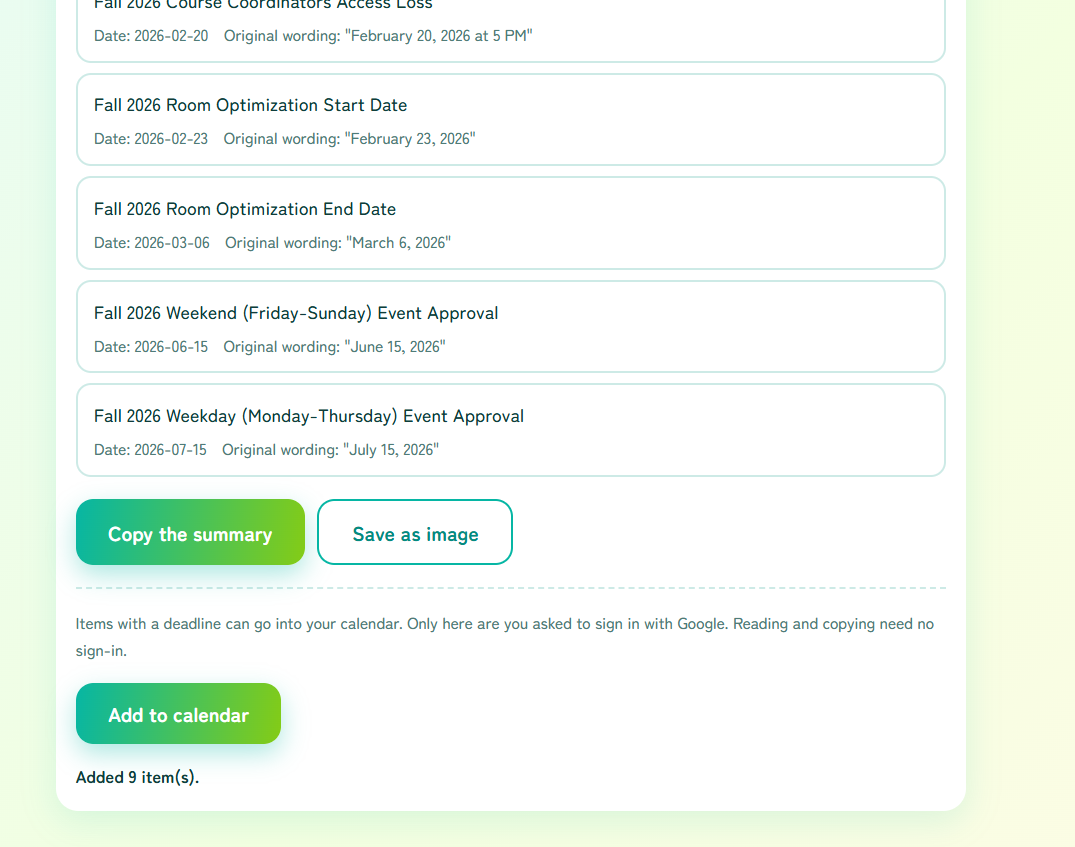
“Add to calendar” puts the items that have a deadline into Google Calendar. This is the first and only point where you are asked to sign in with Google.
4. What the four groups mean
What was read is split into these four. This split is what the tool is really for.
| Group | What goes in it | Calendar |
|---|---|---|
| ✅ Decided | Things a conversation or meeting settled. If a date was written down, it comes out with it. | Added if it has a deadline |
| ❓ Still open | Things that were raised but not settled. What they are waiting on comes out too. | Can be added |
| 📌 To do | Work someone agreed to take on. The owner and the deadline come out when they are clear. | Added if it has a deadline |
| 🗒️ Record (already done) | Things that already happened. Kept so you can look back at them. | Never added |
5. Reading the result
The reading is not perfect — dates and handwriting are where it slips. Please check the result before you copy it or add it to your calendar.
Compare each date with the original wording
Under each date you get the original wording, for example “next Tuesday”. That lets you check whether the AI turned it into the right real date. “No date given” means the record itself had no date in it.
Handwriting can be misread
Handwritten notes and photos of a whiteboard do work, but joined-up writing can be misread. If it struggles, take the photo again in better light, or type the text out and drop in a picture of that instead.
With several files, the order matters
When you drop in several files at once, keep them in the order they were recorded. The tool follows the thread of the conversation to sort it, so a shuffled order can throw off what counts as decided and what is still open. Slightly overlapping images are not a problem.
6. Frequently asked questions
- Do I need to sign in?
- Not for reading, copying or saving as an image. You are asked to sign in with Google only when you press “Add to calendar”.
- Are the conversations and notes I drop in stored anywhere?
- No. Decisions Dropper has no server. Neither the images nor what is read from them reaches us. The only place they go is Google's Gemini API, running on your own key. See the privacy policy for details.
- Is it alright to drop in a conversation involving other people?
- On the free tier, what you send may be used to improve Google's services (the paid tier does not). Please check this before dropping in notes or minutes with names in them.
- The reading came out wrong
- Each date is shown next to the original wording, so compare the two. Handwriting can be misread. Taking the photo again, or splitting the files into smaller batches, often helps.
- How many files can I drop in?
- Up to 10 at once. If the total size is too large it will stop, so reduce the number of files.
- Do faxes and PDFs work?
- Yes. As well as PDFs, it handles chat screenshots, handwritten notes, photos of a whiteboard, and documents such as minutes or committee reports.